> For the complete documentation index, see [llms.txt](https://docs.voicestats.xyz/llms.txt). Markdown versions of documentation pages are available by appending `.md` to page URLs; this page is available as [Markdown](https://docs.voicestats.xyz/getting-started/faq.md).
# FAQ
## Why isn't VoiceStats counting my voice time?
There may be a few reasons why your voice time is not being recorded. Please check the following situations:
### 1. Minumum 30 seconds
Make sure you have spent at least **30 seconds** in a voice channel.
### 2. The member or channel might have been added to the filters.
The member or channel might have been added to the filters. If added, voice time will not be recorded. Use the `/settings` command or the web [Dashboard](https://voicestats.xyz/dashboard) to check your filters.
### 3. It might be an AFK channel
Time spent in the inactive (AFK) channel set in your server settings is not counted by VoiceStats.
To verify this, go to the "Engagement" section in your server settings, scroll down, and look for "Inactive Channel." If your users are in the AFK channel set here, their time won't be counted.
## Which permissions does VoiceStats require?
| Permission | Usage |
| -------------------- | ------------------------------------------------- |
| View Channel | Required to view voice channels. |
| Send Messages | Required to respond to commands. |
| Embed Links | Required to send embeds. |
| Attach Files | Required to send statistic images and graphs. |
| Read Message History | Required to view and edit older messages. |
| Use External Emojis | Required for VoiceStats to use its custom emojis. |
## Can I change the time unit or time zone displayed in the statistics?
Yes, you can change the displayed **time unit** and the **Time Zone** from the `/settings` command or via the web [Dashboard](https://voicestats.xyz/dashboard).
## Can I filter a member or a channel?
Yes, you can add a **member** or a **channel** to the filters from the `/settings` command or the [Dashboard](https://voicestats.xyz/dashboard).
## How can I change the bot's language?
VoiceStats automatically syncs with your Discord client's language settings. There is no specific command to change the language; simply change your language in your personal Discord user settings, and the bot will respond in that language.
## Does time spent in the server's AFK channels count?
Time spent in the inactive (AFK) channel set in your server settings is **not counted** by VoiceStats.
## What is VoiceStats default prefix?
VoiceStats' default prefix is: /
## How to Copy IDs?
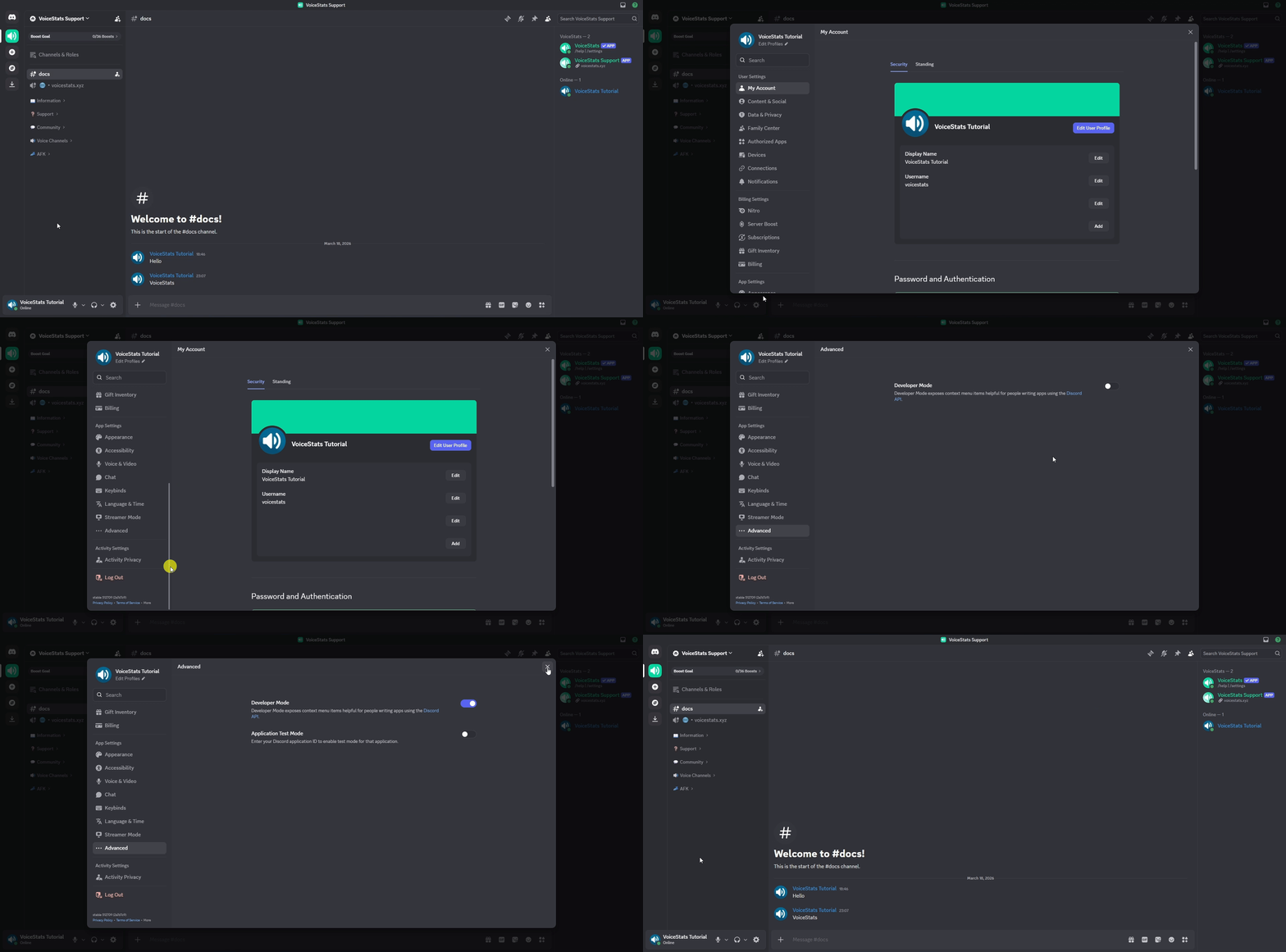
When using VoiceStats filters or commands, you may need the ID of a specific user, channel, or message. To copy any ID in Discord, you first need to enable **Developer Mode**.
### Enabling Developer Mode
This mode allows you to use Discord's advanced features and can be enabled in seconds.
#### **On Desktop and Web:**
1. Click the gear icon in the bottom left corner to open **User Settings**.
2. Scroll down the left menu and click on the **Advanced** tab.
3. Toggle the **Developer Mode** switch at the top to the on (green) position.
#### **On Mobile Devices (iOS/Android):**
1. Tap your profile in the bottom right corner and enter **Settings** via the gear icon in the top right.
2. Scroll down to find and tap on the **Advanced** option.
3. Toggle **Developer Mode** on.
### Copying IDs
Once Developer Mode is enabled, copying an ID is very simple:
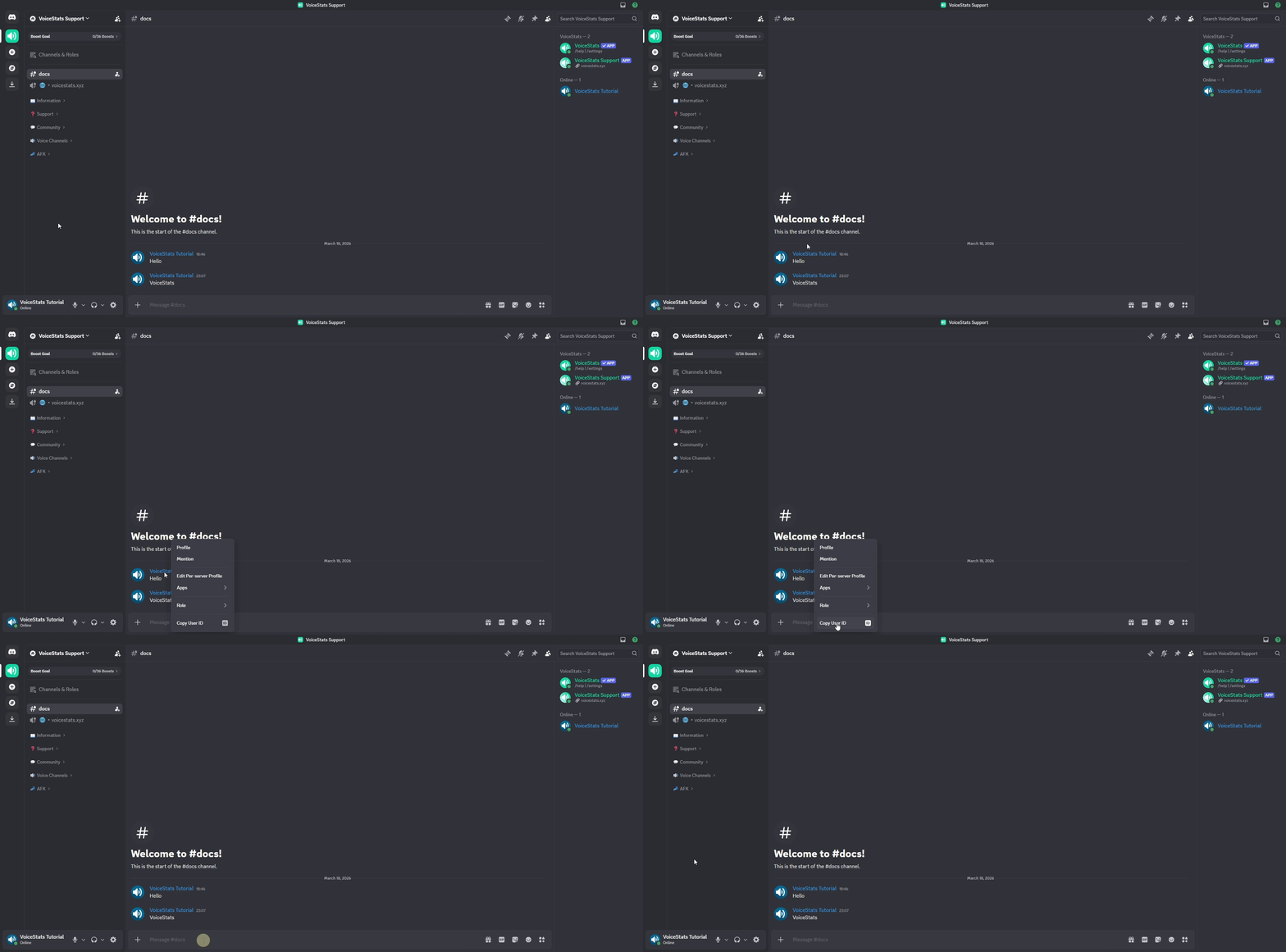
#### **👤 Copy User ID**
Right-click on the user's name or profile picture in the chat or member list (tap and hold on mobile). Click on the **Copy User ID** option at the very bottom of the menu.
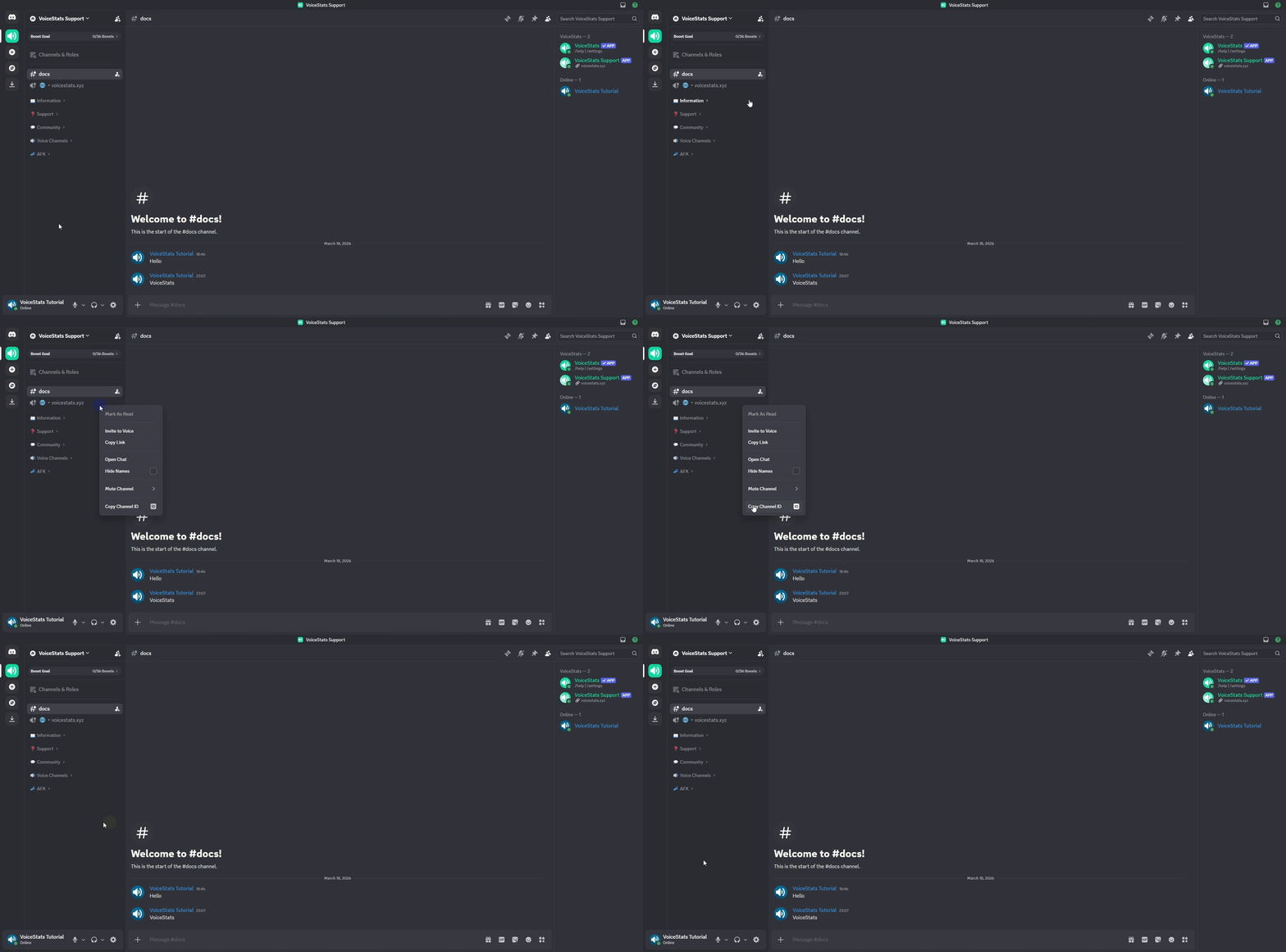
#### **🔊 Copy Channel ID**
Right-click on the name of the channel in the server channel list on the left (tap and hold on mobile). Click on the **Copy Channel ID** option at the bottom.
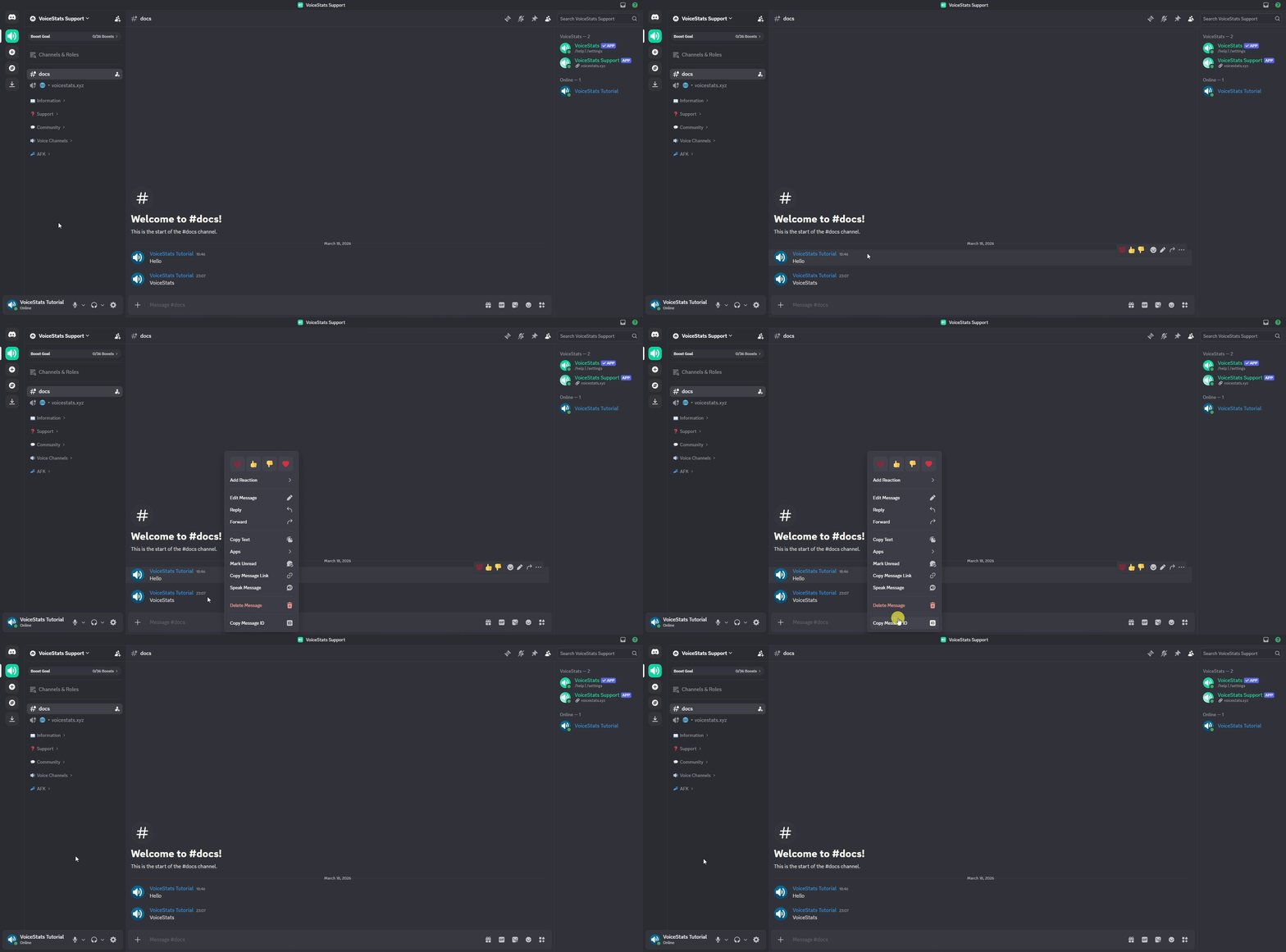
#### **💬 Copy Message ID**
Hover over any message in the chat and click the three dots `...` that appear on the right (or right-click the message). Select the **Copy Message ID** option at the very bottom of the menu.
## VoiceStats commands are not visible/usable?
If the slash commands are not visible on a server where you added VoiceStats, you might not have added the bot correctly. Please check the following steps in order:
### 1. Re-invite the Bot
Try re-inviting the bot to your server: [Invite Bot](https://voicestats.xyz/invite). This can refresh any command registrations that might have been missed during the initial setup.
### 2. Check the 50 Bots Limit
If you still cannot see the slash commands, ensure your server does not have more than 50 bots. Discord supports slash commands for up to 50 bots. If this limit is exceeded, commands for some bots may fail to appear.
### 3. Review Role Permissions
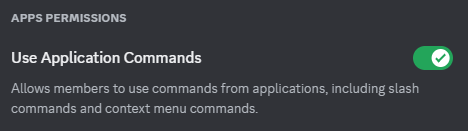
If users on your server cannot see or use the bot's slash commands, ensure the Use Application Commands permission is enabled in their roles. Without this permission, regular members cannot interact with slash commands.
### 4. Verify Integration Settings
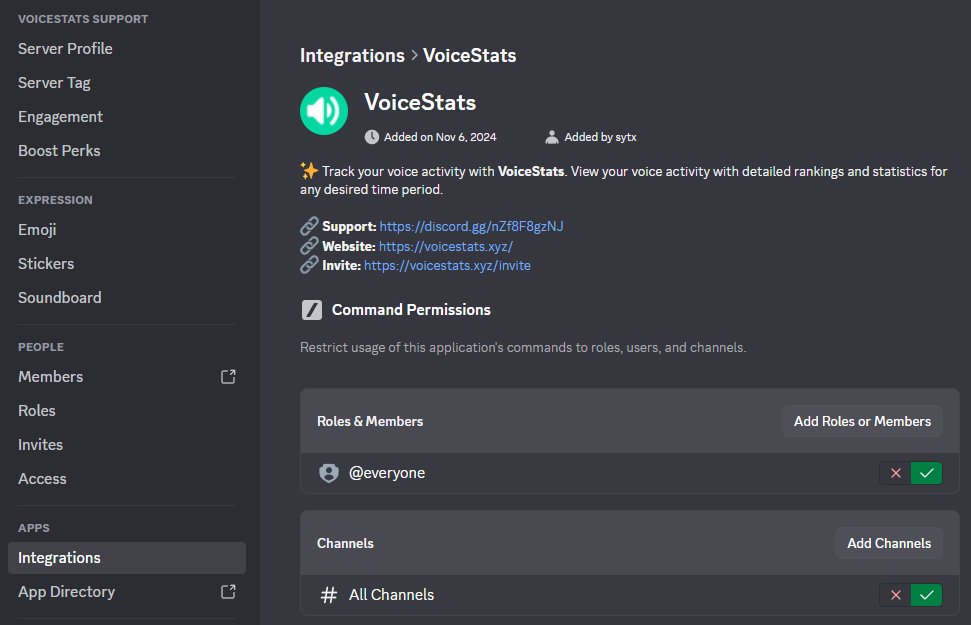
If users on your server still cannot see or use the bot's slash commands, go to the server settings under the Integrations section, select VoiceStats, and make sure the `@everyone` and `#All Channels` settings are enabled
## How can I add VoiceStats to my server?
Click [here](https://voicestats.xyz/invite) to invite VoiceStats to your server. For more help, click [here](/getting-started/setup.md).
{% embed url="" %}
## Where can I vote for VoiceStats?
Click [here](https://voicestats.xyz/vote) to vote for VoiceStats.
{% embed url="" %}
## Server Stats and Server Graph Statistics Are Not the Same
For example, in the `/server stats` command, 10 unique users may appear over the last 30 days, while in the `/server graph` command, only 7 unique users may be shown. The reason for this is that the graph does not sum up all unique users during that time period; instead, it shows the number of unique users separately for each time interval on the graph. In the given example, if those 10 unique users were not in voice channels during the same time interval and at most 7 unique users were active at any given time, this discrepancy occurs. Therefore, this is not a bug.
## My question isn't here, what can I do?
If your question isn't here, you can join our [support server](https://voicestats.xyz/support) and ask in the help channel.
{% embed url="" %}